If your Windows camera opens but only shows a black screen, don’t worry. This usually means the camera is blocked, waiting for permission, or needs a quick reset. Follow the steps below to get your camera working again.
What You'll Need
- Your Windows laptop
- Internet connection
1. Check the HP Camera Privacy Switch
The laptop models have a physical camera privacy switch. If this switch is closed, your camera will stay black even if the light is on.
Note: If you see a small red indicator on the top bezel, the camera shutter is closed.
Try sliding the switch back and forth, then reopen the camera.
Show screenshot
2. Make Sure Windows Is Allowed to Use the Camera
Sometimes Windows privacy settings block the camera without showing an error.
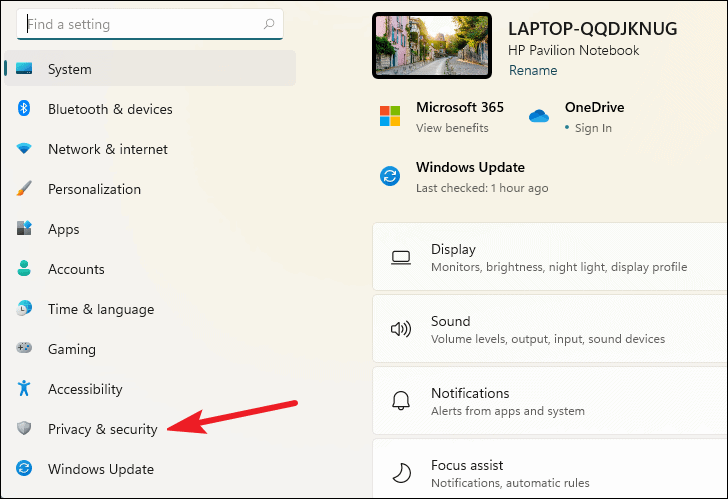
- Open Settings.
- Go to Privacy & Security.
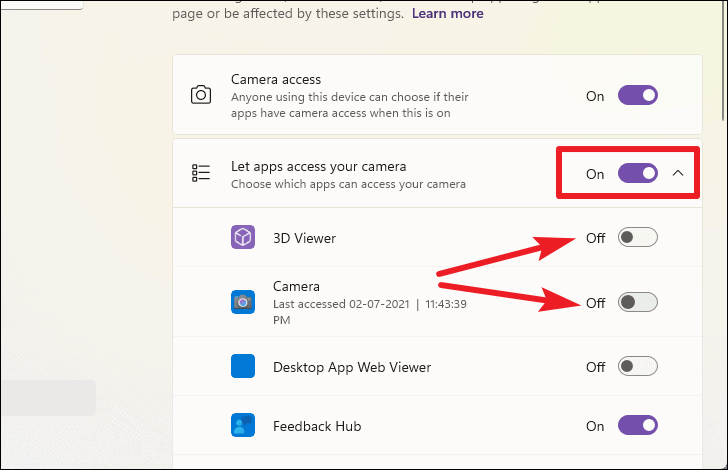
- Select Camera.
- Turn on:
- Camera access
-
Let apps access your camera
Show screenshot
3. Reset the Camera App
This refreshes the camera without affecting any files.
- Open Settings.
- Select Apps → Installed Apps.
- Search for Camera and click it.
- Choose Advanced Options.
-
Scroll down and click Reset.
Show screenshot
4. If You’re Using Zoom, Teams, or a Browser
Your camera may be working normally, but the app is blocking access.
Zoom or Teams
- Open the app’s Settings.
- Go to Video.
- Make sure HP HD Camera is selected.
Browser (Chrome or Edge)
- Click the lock icon next to the website address.
- Set Camera to Allow.
- Refresh the page.
5. Restart Camera Hardware
If the camera is stuck, a restart can clear it.
- Close all apps using the camera.
- Restart your laptop normally.
- Reopen Camera.
When to Contact STS
Please reach out if:
- The camera is still black after all steps
- The privacy switch is loose or damaged
- The camera light stays on even when no app is open
- You see “Camera can’t start” errors
Need Help?
If you run into any problems, Student Technology Support (STS) is here for you:
- Email: it@campus.edu
- Phone: (877) 257-2834
- Support Portal: campuswire.com Tech Help