What You'll Need
- Your Chromebook
- The original charger
-
Access to Wi-Fi (or a hotspot)
Show screenshots
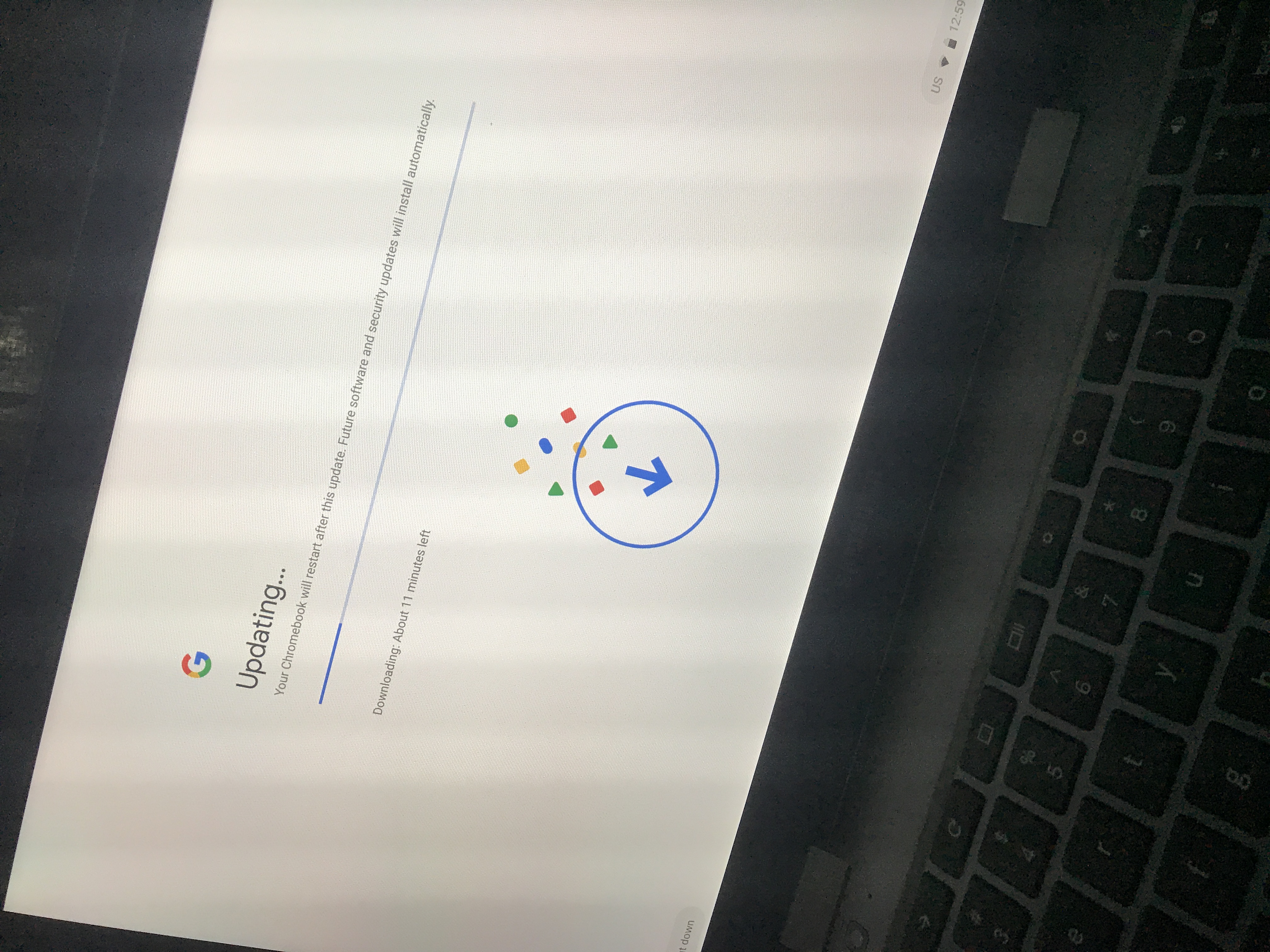
Step 1: Wait a Few Minutes
Updates can sometimes take 5–10 minutes depending on your Wi-Fi speed. If it’s still stuck after that, move to the next step.
Step 2: Do a Hard Reset
- Hold down Refresh (↻) and tap Power.
- Release both keys once the screen turns off.
-
Wait 5 seconds, then press Power again to turn it back on.
This forces the Chromebook to clear any frozen update process — it won’t delete your files.
Step 3: Connect to a Reliable Network
- If you’re on a hotspot, move closer or restart it.
- For home Wi-Fi, turn the router off for 30 seconds, then back on.
- Reconnect your Chromebook to Wi-Fi and make sure it shows Connected (not “No Internet”).
Step 4: Check for Updates Again
- Click the clock in the bottom-right corner.
- Select Settings ⚙️ → About ChromeOS → Check for updates.
- If it finds one, let it install and restart when done.
Step 5: Powerwash (Reset) if the Chromebook Still Freezes
If your Chromebook keeps freezing every time it tries to update, you may need to reset it. The steps are slightly different depending on whether the Chromebook is responsive after restarting.
If the Chromebook becomes responsive after a restart:
- Back up your files to Google Drive.
- Click Settings → Reset settings → Powerwash.
-
Follow the prompts and sign back in with your Campus email after it restarts.
If the Chromebook is still frozen or cannot open Settings:
- Restart the Chromebook until you reach the login screen.
- Press Ctrl + Alt + Shift + R.
-
Select Restart, then choose Powerwash and follow the on-screen steps.
Need Help?
If you run into any problems, Student Technology Support (STS) is here for you:
- Email: it@campus.edu
- Phone: (877) 257-2834
- Support Portal: campuswire.com > Tech Help