If your Chromebook types the wrong characters, use the keyboard option in the Quick Settings menu (opened by clicking the time) to switch to the correct layout and remove any extras.
1. Open Quick Settings
Click the time (bottom-right) to open the Quick Settings menu from the sign in page.
Show Screenshot
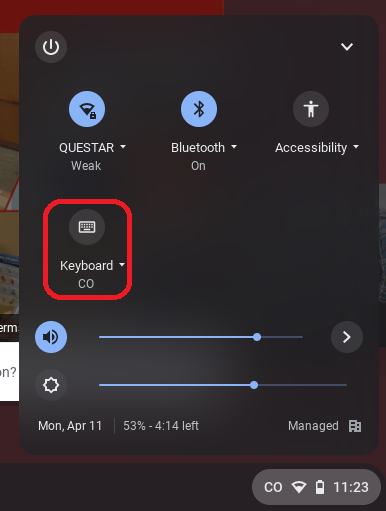
2. Open the keyboard/input menu
In Quick Settings, select the Keyboard/Input tile or the language badge (e.g., US, INTL, EN) to open input options.
Show Screenshot
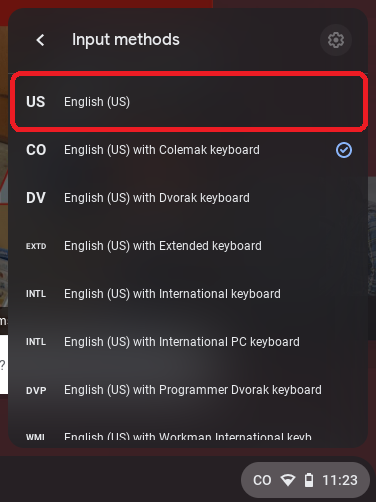
3. Select the correct layout
Choose your layout from the list (e.g., US keyboard, US International, UK, Dvorak, Colemak).
Show Screenshot
4. Manage layouts (add/remove)
From the same menu, select Manage input methods (or More input methods). Add the correct layout and remove any layouts you don’t use so ChromeOS won’t switch to them.
Troubleshooting
-
If keys still don’t match, confirm you picked the correct layout (US vs UK) rather than just the language.
Quick tips
- Keep only one or two layouts to avoid accidental switching.
- Use the language badge (US/INTL) in Quick Settings for fast changes without opening Settings.
Need Help?
If you run into any problems, Student Technology Support (STS) is here for you:
- Email: it@campus.edu
- Phone: (877) 257-2834
- Support Portal: campuswire.com > Tech Help