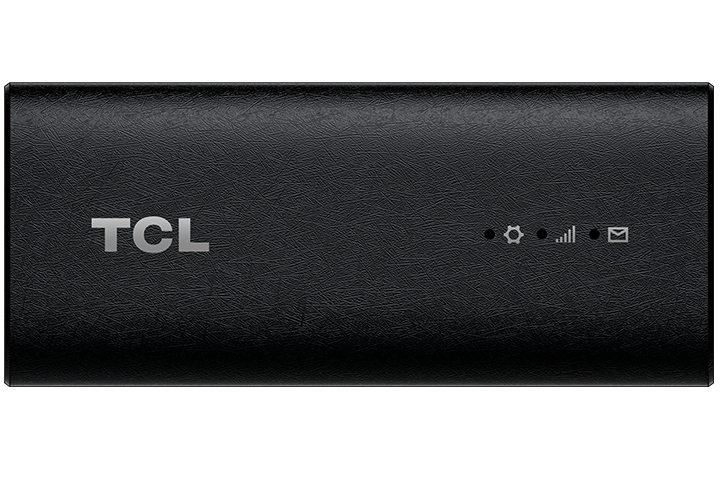
This is a setup guide on how to use the TCL Linkport hotspot.
Instructions:
-
Connect your device: Use the included USB-C cable to plug the TCL Linkport device into a USB port on your computer.
Reminder: The TCL only works when connected and does not work wirelessly.
-
Wait for auto-installation: Allow the software to auto-install. The process may take a few minutes, especially on the first use, as the device configures itself.
- You may see a yellow light appear next to the gear icon on the hotspot. This indicates that the network is being set up on your device.
-
Below are some examples of what it would look like whether you are using a Chromebook or Windows device.
Chromebook
Windows
Before connecting to any network, your settings may look like this After plugging in the TCL hotspot, you should see "Ethernet #" pop up
- Ready for use: After a couple of minutes, the gear icon light will turn green. Your device should now be connected and your network connection on your laptop will show up as a wired network (via Ethernet.)
Chromebook
Windows
Common LED Indicators
| Indicator description | LED Indicator Status |
| Powering up |
System LED Indicator:
|
| Connected on 4G or 5G* |
Signal LED Indicator: • Solid green: Strong signal strength • Solid yellow: Acceptable signal strength • Solid red: No signal |
Hotspot FAQs
What is the maximum amount of data per month and what happens when I reach that limit?
The amount of data available each month is 30 GB, which automatically renews every month.
If you reach your 30 GB limit, your hotspot will be throttled (slowed down), but you’ll still have unlimited data until the next monthly cycle begins. Some websites may also be blocked to help conserve data.
If you have trouble connecting after hitting the limit, it’s your responsibility to find another internet connection to attend class and complete coursework.
What should I use my hotspot for?
The hotspot should only be used to connect your device for attending classes and completing assignments.
What types of activity should I not use my hotspot for?
Do not use the hotspot for video streaming, gaming, connecting other devices, or anything unrelated to your coursework. The data plan is meant only for classwork and Campus activities.
Reminder: Keep your hotspot charged and use it only for schoolwork. Running multiple devices or streaming can quickly use your data and slow your connection.
Need Help?
If you run into any problems, Student Technology Support (STS) is here for you:
Email: it@campus.edu
Phone: (877) 257-2834
Support Portal: campuswire.com > Tech Help